Release Note 2.81
August 5th 2019
Updating to 2.81 from 2.71 or Earlier (READ ME!)
STEP 1a - Backing Up Helix/HX Hardware
- Connect your Helix/HX processor to a Mac or PC via USB and turn it on. Do not use any sort of USB hub.
- Open YOUR CURRENT VERSION of HX Edit (NOT the new HX Edit 2.81).
- From the top File menu, select "Create Backup..."
- Click "Create Backup."
STEP 1b - Backing Up Helix Native
If you don't currently own Helix Native, skip this step.
- Open any instance of Helix Native 1.80 (NOT the new Helix Native 1.81) within your DAW and click the "My Account" button in the lower left corner to open the Preferences window.
- From the General tab, click "Export Bundle."
- Choose the destination folder and click "Save."
STEP 2 - Updating HX Edit to 2.81
(YOU MUST DO THIS BEFORE UPDATING YOUR HELIX/HX FIRMWARE!)- Turn off or disconnect any connected Helix or HX hardware.
- Log onto line6.com. Once logged in, download the latest version of HX Edit, available here:
- Read the Software License Agreement (hahaahaaa!) and click "Accept and Download."
- Once the software has downloaded, double-click the installer and follow the prompts.
STEP 3a - Updating Helix Floor/Rack/LT to 2.81
(DO NOT DO THIS UNTIL AFTER YOU'VE UPDATED HX EDIT TO 2.81!)If you have HX Effects or HX Stomp, skip to STEP 3b below instead.
- If you have Helix Rack/Control, turn off Helix Control. Also, shut down all Line 6 software or any programs that use audio, like DAWs, iTunes, Spotify, video games, etc.
- Connect Helix to a Mac or PC via USB (do not use any sort of USB hub) and turn it on.
- Launch Line 6 Updater. The latest version was automatically installed when you installed HX Edit 2.81 in "STEP 2—Updating HX Edit to 2.81" above.
- Enter your Line 6 Username and Password and click "Sign In." A big green box appears with a picture of your Helix product. Click the big green box and then click "Update" next to Version: 2.81.
- Carefully read the instructions (HEY! DID YOU BACK UP FIRST?), click "Continue," and then "Accept." A warning dialog appears, telling you that Helix will be reset twice.
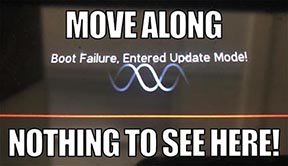
- Think "Hmm, maybe I should've backed up first? Nah, I insist on subverting the dominant paradigm," and click "OK." Helix begins updating. As wholly expected, because we warned you... because you always read the instructions... halfway through the update process, Line 6 Updater displays a second dialog and Helix's LCD reads "Boot Failure. Entered Update Mode!" THIS IS NORMAL. DO NOT FREAK OUT, TAKE A PHOTO, AND THEN POST IT ONLINE BECAUSE EVERYONE WILL MAKE FUN OF YOU FOR NOT READING THESE INSTRUCTIONS.
- Click "OK" again. When finished, Helix restarts automatically and begins rebuilding your presets. Let it finish.
IMPORTANT! This may take some time. If Helix appears to not respond for many minutes, see the message directly below step 8.
- If you have Helix Rack/Control, turn on Helix Control. Helix Rack reads "Helix Control must be updated to work properly. Update now?" Press Knob 6 (OK) to update Helix Control.
STEP 3b - Updating HX Effects/HX Stomp to 2.81
(DO NOT DO THIS UNTIL AFTER YOU'VE UPDATED HX EDIT TO 2.81!)If you have Helix Floor, Helix Rack/Control, or Helix LT, follow STEP 3a above instead.
- Shut down all Line 6 software or any programs that use audio, like DAWs, iTunes, Spotify, video games, etc.
- Connect your HX processor to a Mac or PC via USB (do not use any sort of USB hub) and turn it on.
- Launch Line 6 Updater. The latest version was automatically installed when you installed HX Edit 2.81 in "STEP 2—Updating HX Edit to 2.80" above.
- Enter your Line 6 Username and Password and click "Sign In." A big green box appears with a picture of your HX product. Click the big green box and then click "Update" next to Version: 2.81.
- Carefully read the instructions (HEY! DID YOU BACK UP FIRST?), click "Continue," and then "Accept." When finished, your HX device restarts automatically.
STEP 4 - OPTIONAL: Loading the 2.8X Factory Presets/Templates
IMPORTANT! The following procedure will COMPLETELY ERASE ALL OF YOUR CUSTOM PRESETS! If you want to keep them, make sure you back them up first! (See "STEP 1a—Backing Up Helix/HX Hardware" above.)
- Turn off your Helix/HX processor.
- Depending on your type of Helix/HX product, follow the procedure below:
- Helix Floor/LT—While holding footswitches 7 and 8 (two left-most switches on the bottom row), turn on Helix/Helix LT. Wait for "Will restore stock Presets and Setlists..." and let go
- Helix Rack/Control—While holding knobs 3 and 4 below the screen, turn on Helix Rack. Wait for "Will reset Presets..." and let go
- HX Effects—While holding footswitches 5 and 6 (middle two switches on the bottom row), turn on HX Effects. Wait for "Will reset Presets..." and let go
- HX Stomp—While holding footswitches 1 and 2, turn on HX Stomp. Wait for "Will reset Presets..." to appear on the screen and let go
- Helix Native—Click the gear icon in the lower left corner to open the Preferences window. From the Presets/IRs tab, click "Restore Factory Setlists"
STEP 5a - OPTIONAL: Restoring Helix/HX Presets, IRs, and Global Settings from a Backup
- Connect your Helix/HX processor to a Mac or PC via USB (do not use any sort of USB hub) and turn it on.
- Open the NEW VERSION OF HX Edit 2.81 you installed in "STEP 2—Updating HX Edit to 2.81" above.
- From the top File menu, select "Restore from Backup."
- Browse to the backup file and click "Open
STEP 5b - OPTIONAL: Restoring Helix Native from a Backup
If you don't currently own Helix Native, skip this step.
- Open any instance of Helix Native within your DAW and click the gear icon in the lower left corner to open the Preferences window.
- From the Presets/IRs tab, click "Import Bundle."
- Browse to the location chosen in STEP 2 above and click "Open."
Updating to 2.81 from 2.80 (READ ME!)
STEP 1a - Backing Up Helix/HX Hardware
- Connect your Helix/HX processor to a Mac or PC via USB and turn it on. Do not use any sort of USB hub.
- Open the 2.80 version of HX Edit (NOT the new HX Edit 2.81).
- From the top File menu, select "Create Backup..."
- Click "Create Backup."
STEP 1b - Backing Up Helix Native
If you don't currently own Helix Native, skip this step.
- Open any instance of Helix Native 1.80 (NOT the new Helix Native 1.81) within your DAW and click the "My Account" button in the lower left corner to open the Preferences window.
- From the General tab, click "Export Bundle."
- Choose the destination folder and click "Save."
STEP 2 - Updating HX Edit to 2.81
(YOU MUST DO THIS BEFORE UPDATING YOUR HELIX/HX FIRMWARE!)- Turn off or disconnect any connected Helix or HX hardware.
- Log onto line6.com. Once logged in, download HX Edit 2.81, available here:
- Read the Software License Agreement (hahaahaaa!) and click "Accept and Download."
- Once the software has downloaded, double-click the installer and follow the prompts.
STEP 3 - Updating Helix/HX Firmware to 2.81
(DO NOT DO THIS UNTIL AFTER YOU'VE UPDATED HX EDIT TO 2.81!)- If you have Helix Rack/Control, turn off Helix Control. Also, shut down all Line 6 software or any programs that use audio, like DAWs, iTunes, Spotify, video games, etc.
- Connect Helix/HX to a Mac or PC via USB (do not use any sort of USB hub) and turn it on.
- Launch Line 6 Updater, enter your Line 6 Username and Password, and click "Sign In." A big green box appears with a picture of your Helix/HX product. Click the big green box and then click "Update" next to Version: 2.81.
- Carefully read the instructions, click "Continue," and then "Accept." When finished, your Helix/HX device restarts automatically and may begin rebuilding your presets. If so, let it finish.
STEP 4—OPTIONAL: Loading the 2.8X Factory Presets/Templates
- Turn off your Helix/HX processor.
- Depending on your type of Helix/HX product, follow the procedure below:
- Helix Floor/LT—While holding footswitches 7 and 8 (two left-most switches on the bottom row), turn on Helix/Helix LT. Wait for "Will restore stock Presets and Setlists..." and let go
- Helix Rack/Control—While holding knobs 3 and 4 below the screen, turn on Helix Rack. Wait for "Will reset Presets..." and let go
- HX Effects—While holding footswitches 5 and 6 (middle two switches on the bottom row), turn on HX Effects. Wait for "Will reset Presets..." and let go
- HX Stomp—While holding footswitches 1 and 2, turn on HX Stomp. Wait for "Will reset Presets..." to appear on the screen and let go
- Helix Native—Click the gear icon in the lower left corner to open the Preferences window. From the Presets/IRs tab, click "Restore Factory Setlists"
STEP 5a - OPTIONAL: Restoring Helix/HX Presets, IRs, and Global Settings from a Backup
- Connect your Helix/HX processor to a Mac or PC via USB (do not use any sort of USB hub) and turn it on.
- Open the NEW VERSION OF HX Edit 2.81 you installed in "STEP 2—Updating HX Edit to 2.81" above.
- From the top File menu, select "Restore from Backup."
- Browse to the backup file and click "Open."
STEP 5b - OPTIONAL: Restoring Helix Native from a Backup
If you don't currently own Helix Native, skip this step.
- Open any instance of Helix Native within your DAW and click the gear icon in the lower left corner to open the Preferences window.
- From the Presets/IRs tab, click "Import Bundle."
- Browse to the location chosen in STEP 2 above and click "Open."
Bug Fixes in 2.81
- The active EXP Pedal (1 or 2) was not saved with the preset
- On Helix LT, the XLR Outputs would reset to Mic level upon power cycle
- After loading two presets in a row containing a Looper block on Path 1B or 2B, audio could sometimes drop out
- In rare cases, restoring a backup made on 2.71 could cause headphone audio to be lost
- In hands-free Pedal Edit Mode, moving an expression pedal could also affect any Wah, Volume/Pan, or controller assignments
- Changing IRs via controller or snapshot could sometimes result in an audible crossfade between IRs
- Presets with Input > S/PDIF blocks would not pass audio until another preset with a different input block is loaded
- When Global Settings > Preferences > Snapshot Edits is set to "Discard," tempo would not reflect this setting when set to "Per Snapshot"
- Command Center > MMC > Record, Punch In, and Punch Out commands could not transmit correctly
- In rare cases on Helix Floor, Helix Rack, and Helix LT, FS6 (MODE) could fail to toggle between footswitch modes
- Adjusting certain Frequency parameters (typically those below 1kHz) could change at different increments between hardware and HX Edit
- In HX Edit, assigning both a block and Command Center command to the same footswitch could result in erratic behavior when attempting to change the LED color
- Snapshot-controlled Command Center > CC Toggle or CV Toggle values could sometimes not import correctly from older presets
- In rare cases, undoing a footswitch assignment remotely from HX Edit could result in a firmware crash
- In HX Edit, repeatedly pressing Up/Down arrows could inadvertently jump to the bottom of the controller parameter list
- In HX Edit, attempting to undo hardware changes after a Global Factory Reset could sometimes reload preset data from before the reset
- In HX Edit, performing an Undo/Redo function could sometimes cause a Cab > Dual block to change to a Cab > Single block
- In HX Edit, performing an Undo/Redo function could sometimes cause a stereo effect block to change to a mono effect block
- In HX Edit on Windows, the Edit panel's sliders could sometimes fail to appear
- In HX Edit on Windows, customized Command Center text could sometimes be truncated
- On Windows, the Win Defender pop-up could block installation of Helix Native or HX Edit
Known Issues in 2.81
- On Helix Rack/Control, connecting an expression pedal to Helix Control could sometimes cause the pedal position display to behave erratically
- Pitch/Synth > 3 OSC Synth, 3 Note Generator, and 4 OSC Generator are louder than in 2.71
- In rare cases, the Dynamics > LA Studio Comp model can sometimes cause a drop in preset volume
- In HX Edit, applying a custom color to a Snapshot footswitch can sometimes not be reflected on the hardware. For now, apply snapshot footswitch colors from the hardware
- In HX Edit, if the current preset has not been saved, importing a different preset, setlist, or bundle does not currently clear the Undo history
- In rare cases, Helix/HX devices can become disconnected from HX Edit. If possible, always connect your Helix/HX device directly to the USB port closest to your computer's power connector. Never use any sort of USB hub, which may include the front USB ports on the front of towers
- Helix Native will not open in hardened runtime builds of Cubase 10.5
- Some tempo synced effects can act authentic with the global setting set to transparent if tempo changes are controlled via snapshots.
- In HX Edit, importing a setlist containing Command Center > Instant commands may transmit the messages even if no new preset is loaded
- Logic Pro X is currently unable to write snapshot or switch automation data for Helix Native
- In HX Edit, performing an undo after a block cut or clear can delete the block's footswitch and/or controller assignments
- In HX Edit, moving an effect, amp, cab, or IR block can sometimes inadvertently reposition a Split or Merge block
- In HX Edit, certain Output > Powercab and DT parameters cannot currently be assigned to snapshots via Alt+click/Option+click. For now, press and turn the knob on the Helix hardware
- In HX Edit, Ctrl+click/Command+click on certain Output > Powercab and DT parameters may not reset them to default settings
- In Helix Native, changing models can clear automation assignments of common parameters (such as Amp > Bass or Delay > Time)